
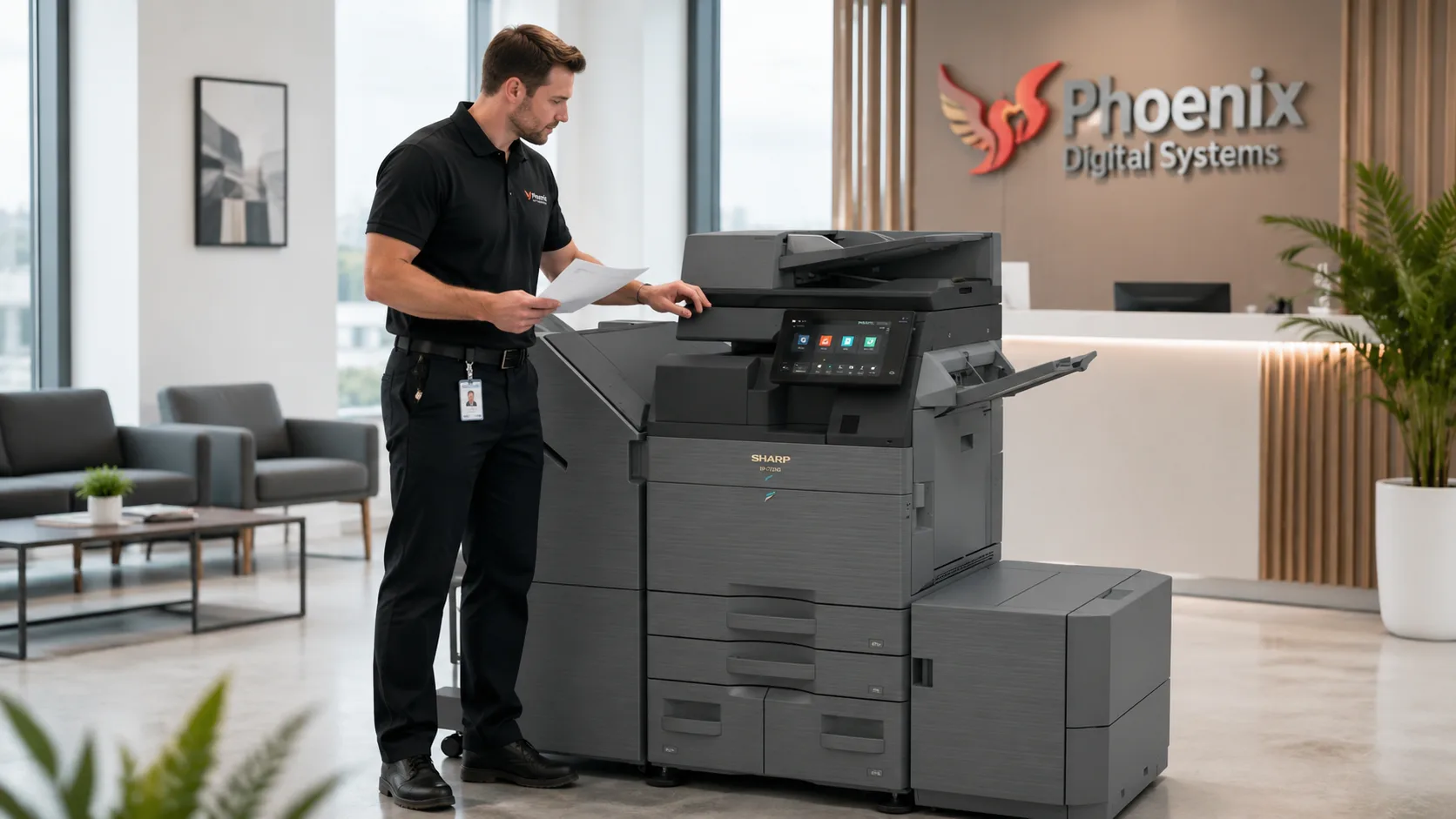
Log a support call
Use Phoenix Freshdesk for printer, photocopier, scanning, PaperCut, software or display faults covered by your support arrangement. Include the affected device and its location.
Keep the ticket reference and watch for Phoenix’s reply. The team may request more information before deciding the next support action.
Remote support on Windows
Only start TeamViewer QuickSupport when a known Phoenix support contact asks to view or control the affected Windows computer. Give the session details directly to that verified technician.
Download TeamViewer QuickSupport for Windows
Save open work, close information the technician does not need and stay with the computer during the session. If the affected computer is not Windows, mention that in the ticket and wait for instructions.
Information to include with a fault
- Your company, site and the floor, room or team affected.
- The device make and model, serial number or Phoenix asset label.
- What you were trying to do and the exact error code or message.
- Whether printing, copying, scanning, PaperCut or the whole device is affected.
- Whether the problem affects one person or everyone using the device.
- When the problem started and any relevant recent change, such as a new computer, router or password.
- The safe checks already tried and what happened after each one.
- A clear photograph or screenshot when useful. Crop or redact document content, names and personal information that Phoenix does not need.
Paper, jams, consumables and cleaning
These checks apply to normal user-accessible areas only. Do not use tools or dismantle the device. For device-specific instructions, use the exact model manual. Sharp customers can also use the Sharp UK download centre.
Paper and trays
- Use a paper size and type supported by the device, and check that the tray setting matches.
- Remove torn, curled, damp or otherwise damaged sheets.
- Set the paper guides against the stack without bending the paper.
- Keep the stack below the tray’s maximum fill line.
- Keep unused paper wrapped and dry until it is needed.
Paper jams
- Follow the sequence and direction shown on the device display.
- Remove paper slowly and gently. Do not force a cover, tray or internal part.
- Check for visible torn fragments without reaching into areas the instructions do not identify.
- Avoid hot areas and exposed internal components.
- Stop and log a call if the paper is not safely accessible or the jam message remains.
Toner and consumables
- Follow the device’s replacement prompt and the instructions for the exact consumable.
- Prepare the correct replacement when toner is low, but do not force or remove a cartridge before the device directs you.
- Do not assume that every print-quality change means the toner needs replacing.
- Keep unopened consumables in their original packaging and follow the storage conditions and orientation shown on the packaging.
Cleaning and basic care
- Clean only accessible document glass, the narrow document-feeder scan glass, the backplate and exterior surfaces.
- Use a clean, soft, lint-free cloth. If the device manual permits it, lightly moisten the cloth and wipe the surface dry afterwards.
- Do not spray liquid onto the device or use flammable sprays, thinners, benzene or aggressive cleaning chemicals.
- Do not clean internal rollers or other components unless the exact model manual identifies a user procedure.
Print, network, scan and PaperCut checks
Print-quality problems
Try another document, then make a simple copy if the device supports copying. Note whether the same marks appear on both, whether they repeat in the same position and whether changing to clean, suitable paper makes a difference.
Use only maintenance or cleaning functions provided on the device or in its user manual. Do not dismantle the machine.
Printing and network problems
Check whether the device says Ready or displays an error, and ask whether colleagues have the same problem. Check only obvious network or USB connections that are safely accessible.
Record any error first. Restart only through normal user controls when the display, manual or Phoenix advises it, and do not repeatedly power-cycle a persistent fault. Leave IP addresses, print ports and network settings to Phoenix or your IT administrator.
Scanning problems
Tell Phoenix whether copying still works and whether every scan destination or only one is affected. Record the exact on-screen wording and check that any visible, user-editable destination has been selected correctly.
Do not send passwords or publish server, SMTP or network credentials. Account, mail-server, shared-folder and other administrative settings may need Phoenix or your IT team.
PaperCut problems
Note whether the job appears in the release list and what happens when you try to release it. If it appears but does not print, check whether the selected device is Ready, out of paper, jammed, low on toner or requesting service.
Do not keep submitting duplicate jobs. Include the username, printer or queue, date and time, and the exact result in the ticket. Include a job name only when it contains no confidential information.
Stop troubleshooting and log a call
Do not continue if a check needs force, tools, dismantling or access to an area not identified for normal users.
- Paper cannot be removed safely, a cover will not close normally or the same jam returns.
- A service code remains after any restart specifically permitted by the display, manual or Phoenix.
- The device or power lead is visibly damaged, or liquid has entered the equipment.
- The device emits smoke, unusual heat, noise or odour. Stop using it, keep people away and follow your workplace electrical safety procedure.
Simple care, when needed
There is no single daily, weekly or monthly routine that applies to every device. Use these event-based checks alongside the manual for your equipment.
- When loading paper, remove damaged sheets, align the guides and keep below the fill line.
- When lines or marks appear on scans, clean the accessible document glass and narrow feeder scan glass.
- When the device requests a consumable, use the exact replacement and follow its instructions.
- After a jam, confirm that the display returns to Ready and log a call if the problem recurs.
Support FAQ
Should I turn the photocopier off every night?
There is no universal rule. Normal power-saving modes are designed for inactive periods, while fax, timed and some network functions may require the main power to remain on. Follow your organisation’s agreed procedure and the manual for the exact device.
Can I keep printing when toner is low?
An early low-toner warning often allows printing to continue while a replacement is prepared, but messages and behaviour vary. Follow the device prompt and replace the consumable when instructed.
What should I do after a paper jam?
Check that all instructed covers and trays are closed and that the display returns to Ready. Try one normal job. If the message returns, paper is damaged again or a fragment may remain, stop and log a call.
Why do lines appear on scanned documents?
Dust or a mark on the document glass or narrow feeder scan glass can appear as a line in the scanned image. Clean those accessible surfaces with a soft lint-free cloth. Log a call if the line remains.
When should I stop and call Phoenix?
Stop when a check needs force, tools or dismantling; when a jam is inaccessible; when a service code persists; or when the device is damaged, unusually hot, noisy, smoking or giving off an unusual odour.
What can Phoenix support remotely?
A Phoenix technician may use TeamViewer to investigate a printing or scanning problem on the affected Windows computer. Start the session only when directed. Some faults still require a device visit or another support action.
Planning something new?
Looking for new equipment, managed print, print software or interactive displays? Choose the service that best fits what you need, or contact Phoenix if you’re not sure where to start.